We know menu item photos drive sales by helping your offerings catch customers' eyes. Sven Vogtland, Co-Founder Coyo Taco, describes it: “As a consumer, when I scroll through menus and something really catches my eye, that's what I'm going to order for dinner that night.” That being said, we also know that you're busy and don't always have time to take photos yourself.
Customers rely heavily on social proof when making a decision about where to eat. According to our 2024 Restaurant Online Ordering Trends Report, 46% of Gen Z and 41% of millennial customers use food photos to drive their purchasing decisions. By adding photos, we aim to boost your visibility, save you time, and help attract more customers to your DoorDash store.
Will DoorDash add photos to my menu?
Have you ever ordered something online and when it arrives, it looks different than what you expected? This is where photos can make sure expectations match reality. They help customers visualize your dishes and make informed choices. That being said, we understand uploading photos can be time-consuming, and we want to make this easier for you.
If you decide to connect your business Instagram account in the Merchant Portal, DoorDash will automatically sync and match existing Instagram photos to help fill photo gaps on your menu. DoorDash automatically matches photos to your menu items after considering photo quality and other photo metadata (ex: captions). Once a match is made, all photos also go through our standard moderation processes. Additional details for Instagram linking can be found in this article.
These visuals help provide authentic representations of your food, so customers feel more comfortable ordering from you. DoorDash will never replace your existing photos, and if you want to change or edit the photo we’ve added, you always can.
How to remove or replace photos DoorDash added to your menu
Though the photo may not be what you would choose to upload yourself, having these photos is better than not having any. 38% of customers say they look at photos when choosing a new restaurant on DoorDash. We highly recommend replacing any images you plan to remove with your own. If you prefer not to have DoorDash-added pictures on your menu, you can:
Upload your own high-quality photos, which will automatically replace any images we uploaded.
Contact our support team to opt out of having DoorDash add photos to your menu.
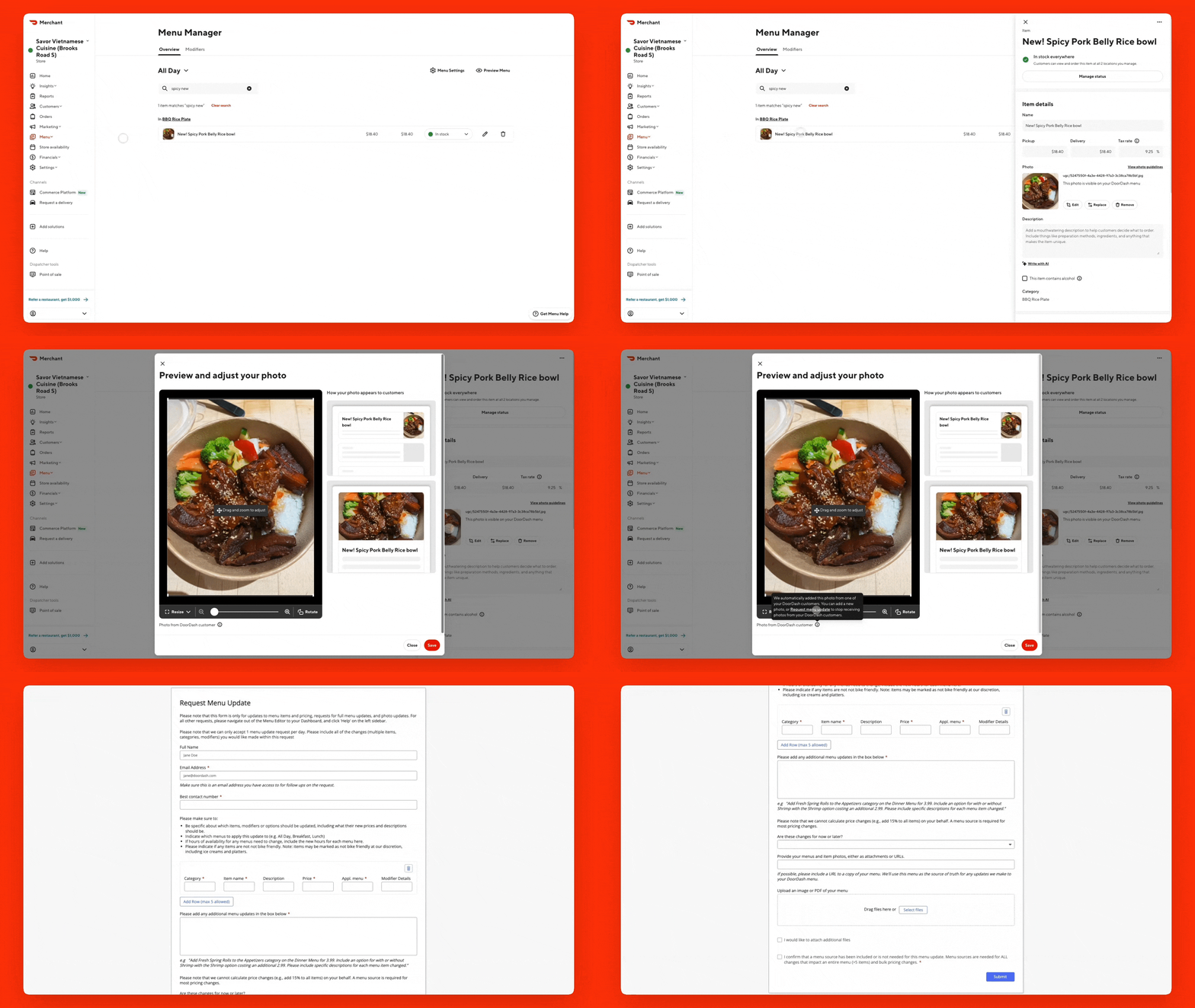
For Yelp photos specifically, you can opt out through the Merchant Portal by following the steps outlined below:
Click on the item with a photo sourced from Yelp.
In the box that appears on the right, click on the item photo to enlarge the image.
Under the enlarged image, hover over the info icon next to “Photo from Yelp.”
Click on Request Menu Help.
Fill in your name, email, contact number, and the below details that you will find in your Menu Manager:
Category
Item name
Price
Applicable menu
Where it says “Please add any additional menu updates in the box below”, type in Please opt my store out of receiving Yelp photos.
Select if you want an immediate change or for these updates to be made at a later date.
Click Submit.
How to take photos that meet DoorDash guidelines
Taking your own high-quality photos is the best way to control your menu's visual appeal. Here are some tips:
Use natural lighting when possible.
Showcase the entire dish, including any sides or garnishes.
Ensure the food looks fresh and appetizing.
Use a clean, simple background to make the food stand out.
You can find more tips on our photo guidelines. Remember, DoorDash offers free professional photo shoots* to eligible merchants. This service can provide you with high-quality images that truly showcase your dishes. If you're on the Premier pricing plan, you also get a $200 credit toward professional food photography** — in addition to a free DoorDash photoshoot where available. This credit can help cover extras like food, styling, or setup so your menu looks its best online.
The best way to take control of your menu's visual representation is by uploading your own photos. However, when DoorDash uploads pictures on your behalf, feel assured that we take measures to check the accuracy and quality of those photos before they land on your menu.
If you want help polishing your existing photos, you can use the photo editor in the Merchant Portal or Business Manager app to fix lighting, background, or framing issues before submission.
How to use the photo editor in the Merchant Portal or Business Manager app
When adding your own photos, you can use the photo editor directly in the Merchant Portal or Business Manager app to enhance your photos. The editor is designed to help you meet DoorDash standards quickly, by automatically improving common issues like dark lighting, busy backgrounds, poor framing, or overlays, and gives you one-tap fixes to improve quality before you submit.
Here’s how it helps you get your photos approved faster:
AI-powered enhancements: Improves brightness, color and sharpness so your dish looks its best.
Background cleanup: Removes cluttered or distracting elements to keep focus on your food.
Preview before submitting: The photo editor allows you to see exactly how the photo will appear on DoorDash before saving it.
Fewer rejected submissions: Cleaner, well-lit photos are more likely to be approved automatically, saving you time.
You can use the photo editor in both the Merchant Portal and the Business Manager app. It’s designed to help you meet DoorDash photo requirements quickly — especially when you’re short on time or don’t have professional equipment.
Want to upload your own menu photos? Read: Learn How to Add DoorDash Photos.